Pipeline commands: Apply Model
This tutorial walks you through the Visual3D pipeline commands for automatically applying a model to a static trial and then assigning it to dynamic trials.


This tutorial walks you through the Visual3D pipeline commands for automatically applying a model to a static trial and then assigning it to dynamic trials.

This tutorial shows how to define a landmark based on an existing target. This allows you to track an anatomical point from the static trial in dynamic trials as well, even if there is no physical marker at that location.

This tutorial shows how to define a landmark in Visual3D by projecting an existing landmark or target onto a plane. This is useful, for example, in tracking the motion of a subject’s center of mass with respect to the floor.

This video shows how to define landmarks in Visual3D using your lab’s global coordinate system. A landmark is defined by its X, Y, and Z offsets from the lab’s origin point; this can be especially useful in creating a virtual lab.

This tutorial explores the differences between static and dynamic trials and how they are used in Visual3D. A static trial is used to define the biomechanical model that is applied to dynamic recordings.

This tutorial shows how to track a point of interest located on a line between two other points. This is useful for tracking points that cannot be directly defined by markers, such as the knee joint center.
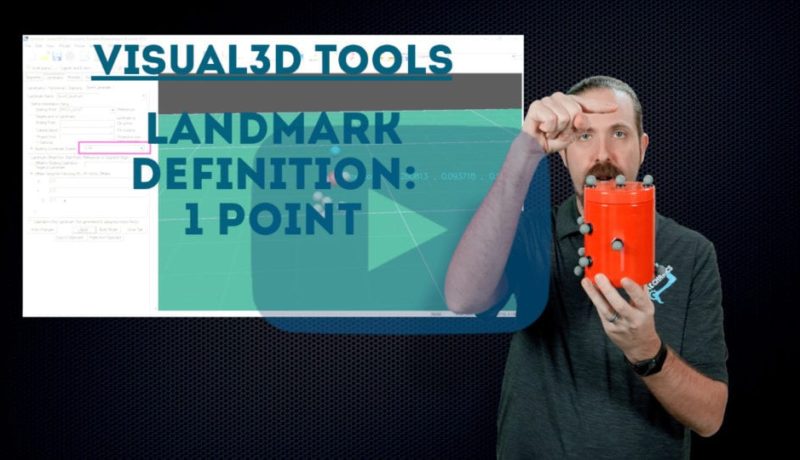
Not all points of interest for motion capture can be tracked by markers. This video explains how landmarks solve this problem and shows how to use Visual3D to define a landmark using a single point.
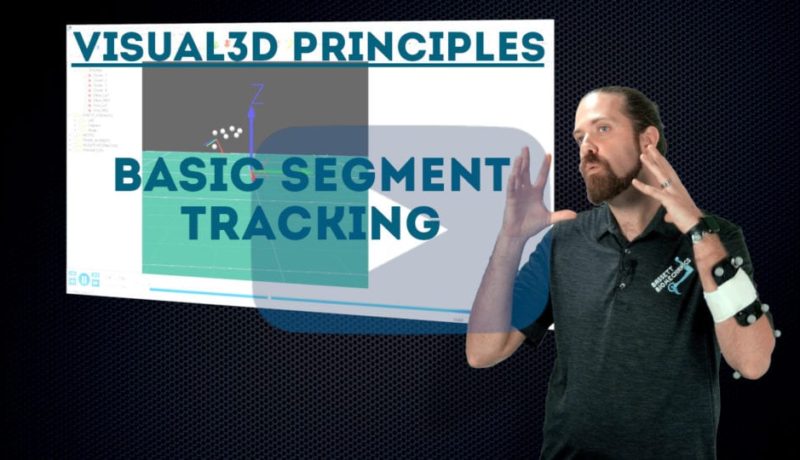
This tutorial discusses the concepts behind definition markers, which are recorded in static trials, and tracking markers, which are tracked during dynamic trials.

This tutorial shows how to track a segment in Visual3D using a separate set of markers from the ones used to define the segment. This can solve problems like skin movement artefact and camera occlusions.

This tutorial illustrates how a basic segment is defined in Visual3D, using four markers to designate the segment’s proximal and distal ends. Knowing how to place markers to define the segment is critical for getting valid biomechanical results.